Thursday, October 18, 2018

Develop First VS Code Extension with D365 Business Central On-Prime Version

Hello Friends,

Let jump into future of development with VS Code,

This blog will help you to configure your first AL Language extension with D365 Business Central On-Prime Server.

Step 1 - Download and install D365 Business Central On-Prime Version.
             You can download from this link
           

Step 2 - Download and install VS Code from link - https://code.visualstudio.com/download
              After that, install latest AL Language extension in VS Code.
           

Step 3 - Make sure that you are able to run web client of D365 BC on-prime version and base URL setup correctly in configuration file.

D365 BC On-Prime Database and Server Instance Detail


Business Central Web client working properly.


Configure "Web Client Base URL" (PublicWebBaseUrl) in service to avoid error during publish vs code extension (Could not open the specified startup page. Please check that the server configuration key PublicWebBaseUrl has been properly set)


Step 4 - Start the VS Code and go to command plate to create new projects,
              Write AL!GO on command plate to create new project.


Go to command palette from View >> Command Pallet (short cut key - Ctrl + Shift + P or F1)


write AL:Go!  to create new AL Language extension project


Write the name of project at end.


Step 5 - System will default create the app.json and launch.json files, configure your op-prime business central service in lanuch.json file as shown in following snapshot.

Default files create with new project


app.json file contain the detail about id, app name and object range details.


launch.json contain the detail about configure business central service detail to start your project with link service while pressing F5 / Ctrl + F5 and also require to download symbols.


Step 6 - Download the base business central object (symbols) from link server in launch.json file.
              Go to command plate and write AL!Download Symbols
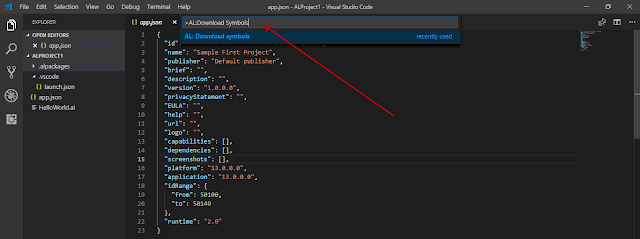


After successfully download symbols, system will show following message.


Step 7 - Now the all setup completed and we are ready publish our first Hello World ! extension in on-prime D365 Business Central.

Press F5 publish your first extension on link server.


Very useful AL Command keyboard shortcut to remember for developer

Keyboard Shortcut Action
Ctrl+Shift+P Show All Commands
Ctrl+F7 Download source code
Alt+A Alt+L Go! Generates a HelloWorld project
Ctrl+Shift+B Package
F5 Publish
Ctrl+F5 Publish without debugging
F6 Publish and open the designer
Ctrl+F2 Update the compiler used by the service tier(s)

==========================================================
Tips - Step the "NetFx40_LegacySecurityPolicy" parameter to false in "Microsoft.Dynamics.Nav.Server.exe.config" file to avoid error in publish extension from VS Code.

You can find config file from path.


Set enabled = false in setting and restart the service to take effect.


I hope this blog help someone to setup there first extension development

If you need any help than write in comments.

Thank you for reading.
Keep Sharing...Keep Growing...

Modify Standard Pages Control Using Extension in Business Central


Hello Friends,

Get ready for new future for development skills with Dynamics Products.
As you know, in Business Central we can't modify the base systems standard objects,
Only way to modify base is to create extended object and event subscription.

Suppose you want to modify standard page field property, than you need to create the page extension of standard page and can add, delete, modify fields and property and action of standard page.

AL Language provide us new functions Modify(), Addafter(), functions for modify standard pages.

Following are list of property for page field and action that we can modify using Modify() function in page extension.


pageextension 70144473 pageextension50001 extends "Sales Order"
{
    layout
    {
        modify("No.")
        {
            Visible = false;
            Caption
            CaptionClass
            CaptionML
            ClosingDates
            Description
            Enabled
            FreezeColumn
            HideValue
            Importance
            InstructionalText
            InstructionalTextML
            ODataEDMType
            OptionCaption
            OptionCaptionML
            QuickEntry
            ShowCaption
            Style
            StyleExpr
            ToolTip
            ToolTipML
            Width
        }
        addafter(General)
        {
            part(Complaint; "INT Complain Register Subform")
            {
            }
        }

    }
    actions
    {
        modify(Post)
        {
            Visible = false;
            ApplicationArea
            Caption
            CaptionML
            Description
            Enabled
            InFooterBar
            Promoted
            PromotedCategory
            PromotedIsBig
            PromotedOnly
            ShortcutKey
            ToolTip
            ToolTip
            ToolTipML
        }
    }
}


Hope it will help someone to understand the concept of development with AL Language using VS Code.

Please write a comment if you need more help,

Thank you for reading,
Keep Sharing....Keep Growing ......

Wednesday, October 17, 2018

Which object ranges can we use with Microsoft Dynamics 365 Business Central?

Hello Friends,

I wanted to provide some clarity on how you want to think about object ranges in Dynamics NAV and Microsoft Dynamics 365 Business Central.  Which object ranges are used for what, which one have potentially costs associated, how do you apply for them and what changed with the launch of Business Central.  Let me know in the comments if you have questions on this topic.

0 – 49,999: The Business Central base application

This range is assigned for the Business Central base app functionality.  Not to be used by partners!

50,000 – 99,999: Customization ranges

This object range is designed for resellers who want to customize the delivered solution to individual needs of a customer.
When implemented with Dynamics NAV On-Premise, partner hosted or Azure IAAS:
The objects in this range needs to be purchased from the Dynamics Pricelists when implemented on premise, partner hosted or Azure IAAS. They are implemented in the traditional way using C/Side or through loading extensions.
When implemented with Dynamics 365 Business Central On-Premise, partner hosted or Azure IAAS:
The objects in this range needs to be purchased from the Dynamics Pricelist when implemented on premise, partner hosted or Azure IAAS. They are implemented in the traditional way using C/Side or through loading extensions.
New since fall 2018 (Cumulative Update 1 - planned for November):  The extension objects developed in AL and stored in the 80,000 – 99,999 range which extends objects to which you have modify permissions in your development license.   (For ex.  When you want to extend the Customer table from the base app, you are required to develop an extension object and assign a unique object ID to it – this is now for free in this specific customization range).
When implemented in Dynamics 365 Business Central SAAS:In the SAAS service, customizations are build in Visual Studio Code and AL against a sandbox environment or a Docker contrainer and loaded in the tenant through tenant customizations.  The objects in this range are currently free of charge.  Expect that customizations in the SAAS service will be monetized at some point in time.

1,00,000 - 9,99,999: Localization range

The objects in this range are mainly designed when the Microsoft team localizes Dynamics 365 Business Central for a specific country or region.
These objects cannot be used by partners.

1,000,000 – 69,999,999: Registered Solution Program (RSP) range

This range is designed for your unique horizontal or vertical niche solutions which you will implement repeatedly .  When you apply for a RSP solution, a unique range will be assigned to your solution by Microsoft. Terms in The RSP program details determine whether you need to pay quarterly fees.
However, if you comply with the ‘Certified for Microsoft Dynamics’ (CFMD) program requirements, one of the benefits of the program is that the quarterly fees on object costs will be waived. 
New since summer 2018, Next to be able to implement these solutions on-premise, partner hosted or on Azure IAAS in Dynamics NAV and Business Central on-premise, these modules can also be implemented in Business Central SAAS and Microsoft AppSource.  You will use the AppSource submission process for submitting.

70,000,000 – 74,999,999: Business Central apps

The objects in this range are designed for developing Apps for Business Central SAAS which are made available through Microsoft AppSource.   The code is developed in AL language using Visual Studio Code.  The objects created in the app are free of charge! You request those object ranges here
These Apps can be submitted through the AppSource submission process.
New since fall 2018 (Cumulative Update 1 - planned for November):  The apps, developed in this range and in AL can also be implemented in Business Central on-premise, partner hosted or Azure IAAS solutions.  The benefit here is that you don’t need to maintain multiple object ranges.

Sunday, August 19, 2018

D365 Business Central - Use code analysis to prevent strange errors

Hello Friends,

You’ve developed a marvellous ðŸ˜€ extension for Dynamics 365 Business Central and tested it on your development sandbox without problems. Now, you try to deploy it to a production environment via the Upload Extension action on the Extension Management page and fail to publish. 
Publish operation failed. Details: Extension validation failed. View the error details for more information.
What error details? Unfortunately, Microsoft actually does not provide a great way to see what is the cause of these types of errors, but they are actively working on improving the error status information in Dynamics 365 Business Central, so stay tuned. - After June 2018, Microsoft provide the detail descriptive error logs. 
But, what can I do now? I’ve experienced many times that this error is caused by rules not met on your extension. I think it’s extremely helpful to activate the code analysis tools that Microsoft actually provides for the AL language because they can help you to prevent failures.
The AL Language extension for Visual Studio Code contains three code analyzers:
  • CodeCop is an analyzer that enforces the official AL Coding Guidelines. For more information, see CodeCop Analyzer Rules.
  • PerTenantExtensionCop is an analyzer that enforces rules that must be respected by extensions meant to be installed for individual tenants. For more information, see PerTenantExtensionCop Analyzer Rules.
  • AppSourceCop is an analyzer that enforces rules that must be respected by extensions meant to be published to Microsoft AppSource. For more information, see AppSourceCop Analyzer Rules.
There’s a great blog post by Waldo that explains how to activate, use and customize them, so I don’t want to write more on that here (he’s the king!).
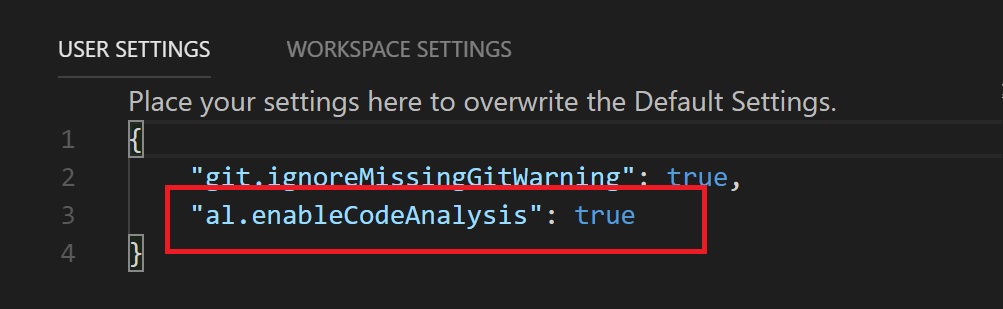
On your Visual Studio code, you can go on File -> Preferences -> Settings and here activate the analyzers by adding the following line in the User or Workspace settings:
ALCodeAnalysis_01.jpg
This line activates ALL the AL code analyzers and in my opinion it’s only for real world purists ðŸ˜€
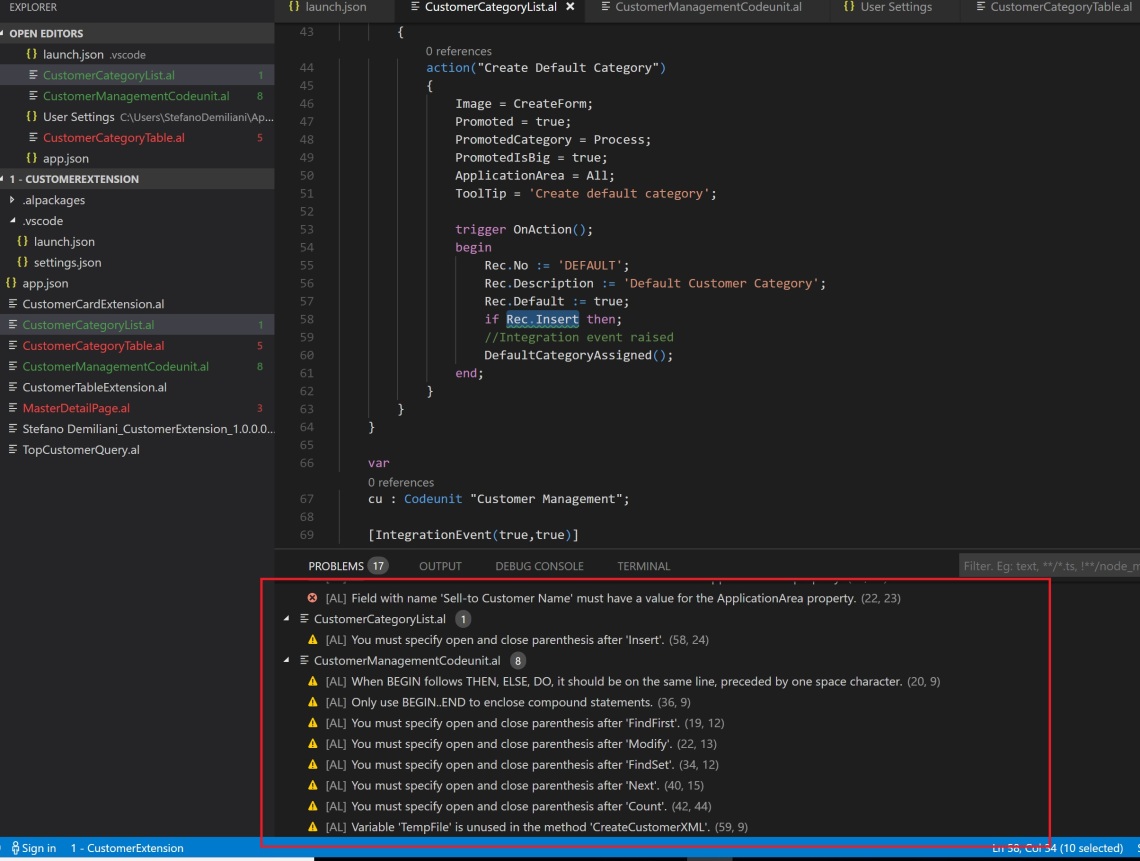
This is what happens when I compile an extension that works and that doesn’t have any types of errors or warnings when I don’t have the analyzers activated:
ALCodeAnalysis_02.jpg
As you can see, there are lots of “unuseful” warning regarding parenthesis, BEGIN..END and so on.
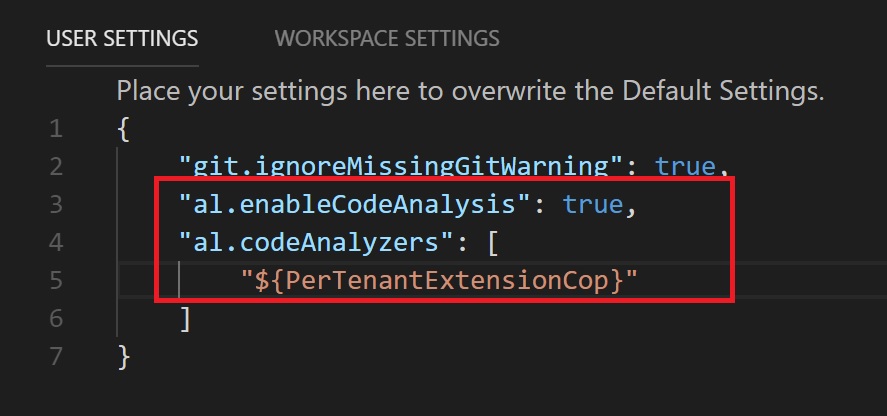
Activating all the analyzers could be too much, but I suggest to activate at least the PerTenantExtensionCop analyzers when you want to deploy your extension to a production environment (per-tenant extension, not AppSource):
ALCodeAnalysis_03.jpg
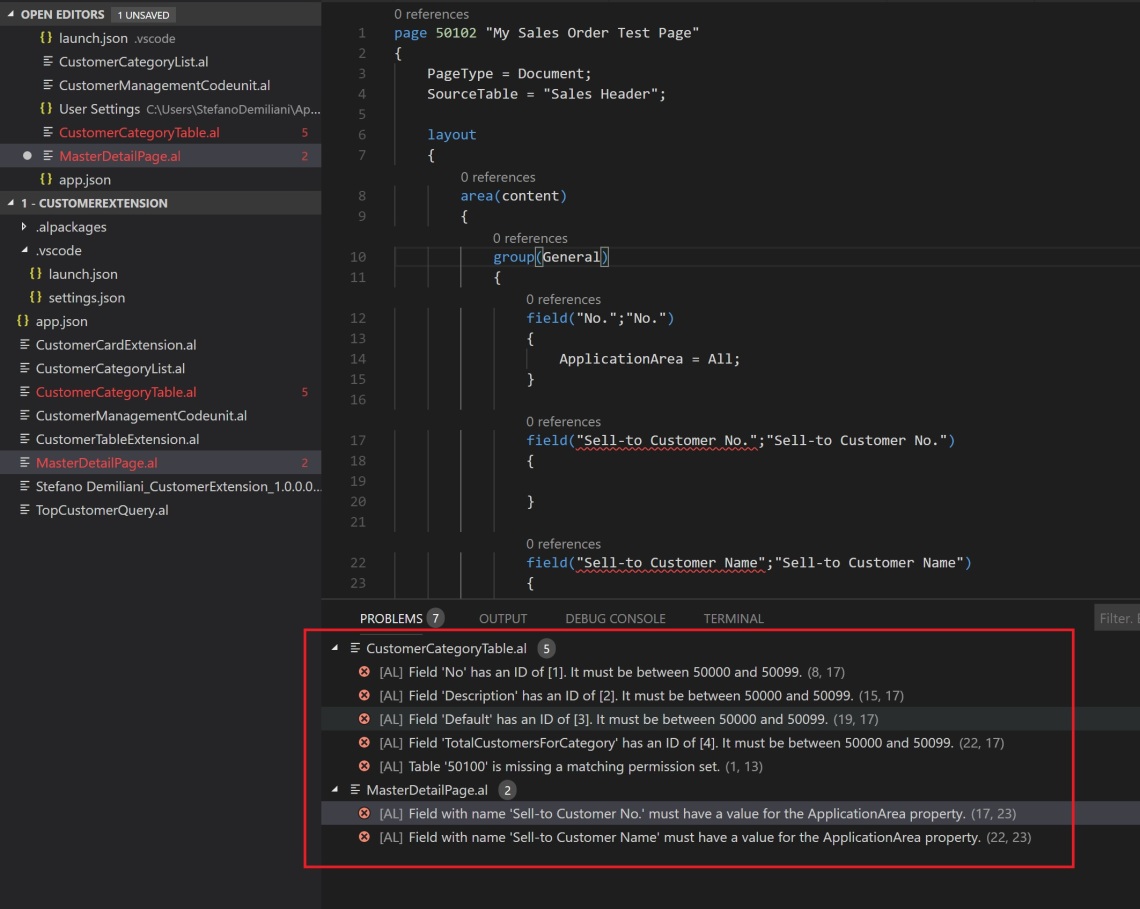
Now, if you compile the previous extension with all this analyzers activated, this is the result:
ALCodeAnalysis_04.jpg
Now the compiler listed only problems that can cause conflicts when installing the extension on a production tenant.
My suggestion (only based on experience, so feel free to comment) is to solve all these problems in your code and then deploy to production. The previously reported error in many cases will disappear. If not, your last chance is to call Microsoft ðŸ™‚

D365 Business Central: 3-Character prefix require for AppSource Apps Development

Hello Friends,

If you planning to develop extension (apps) for D365 BC of Microsoft App Source, than you have to request and register 3-Character prefix/suffix code for your organization with Microsoft

For example, at Intech-Systems we had register "INT" as our organization unique code. So, D365 BC team will reserve this code for us and we have to use this code for apps development as following.

 List of examples....


  • Object prefix must be registered with Microsoft (at least 3 digits) and must be unique (it’s globally reserved for you)

  • It can be a prefix or a suffix (you can call an object XXXMyTable or MyTableXXX)

  • You have to use it for every objects in your extension

  • This is case insensitive (you can call an object XXXMyTable or xxxMyTable)

  • You can use the prefix in any format you want (XXX_MyTable, XXX-MyTable, XXX.MyTable, XXX MyTable etc. are all valid names)

  • You can register more than one prefix (you can have a prefix for app but I think this is not a good way to do, I prefer a prefix for company)

  • Functions in your extension objects cannot have the prefix/suffix in names (the prefix is in your object name, so you can have something like XXX-MyCodeunit.MyWonderfulFunctionNameLongAsIWant() )

  • If you have extension A that depends on extension B and extension C, and both B and C adds a function MyFunction to a standard table (Customer table for example), if you call Customer.MyFunction you receive an error on compilation (ambiguous call)

  • If you create any extended page/table object than object name should contain it.                Example - pageextension 70144371 INT ExtendItemCard extends "Item Card"

  • Use in name of action/group added in standard page/rolecenter, see the following example
  •     actions 
        { 
            addafter("Purchase Invoice") 
            { 
                group("INT Item Generator") 
                { 
                    action("INT Item Configurator List") 
                    { 
                        Caption = 'Item Configuration'; 
                        ApplicationArea = all; 
                        Image = ItemTracking; 
                        Promoted = true; 
                        PromotedCategory = Process; 
                        PromotedIsBig = true; 
                        RunObject = Page "INT Item Configurator List"; 
                    } 

  • Use in name of field added in standard table (by extended tales object)

  • Microsoft want to make you extension object name should be unique and remove the conflict between and N-number extension in app source,

    Hope this blog will help you. Write a comments if you need more help.

    Thank you,
    Keep Sharing....Keep Growing...

    D365 BC add page in search list by using Property UsageCategory and ApplicationArea

    Hello Friends,

    I’ve see many AL developers with the same problem when developing an extension for Dynamics 365 Business Central: they create a new table, then they create a new page based on that table, they set UsageCategory and ApplicationArea properties, they deploy the extension to Dynamics 365 Business Central with success, then they search for the newly created page and… it’s not there!!! 😦

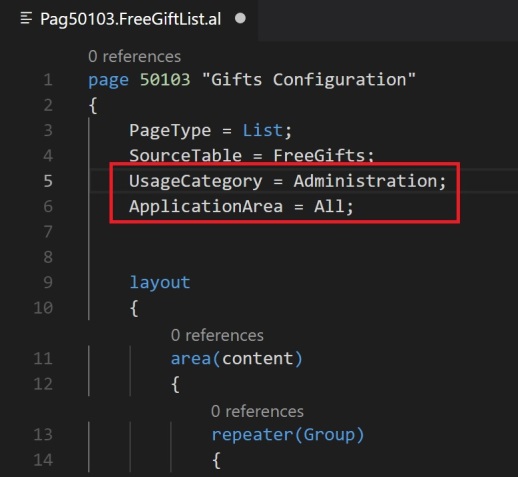
    This problem (I didn’t check if it occours on all the Dynamics 365 Business Central versions, current one or also insider builds) is due to a stupid thing: don’t use quotes when setting UsageCategory and ApplicationArea.

    This is a code that works:

    UsageCategoryProblem_01.jpg


    And this is a code with problems while searching your page:

    UsageCategoryProblem_02.jpg

    These two versions doesn’t have problems when compiling your AL code on Visual Studio Code (all versions are admitted) but the first one is what you have to do if you want to find your page in Search without problems.

    Hope it helps.

    Sunday, August 5, 2018

    Publish first app of D365 Business Central on Microsoft App Source

    Hello Friends,

    We are glad to inform that our first app of D365 Business Central Published on Microsoft App Store.
    It was long procedure of couple of months..at last we done it !!

    We have learned lot of new things while developing extension on VS Code, We have great future ahead and there are many things to learn. Prepare your self for new generation development tools.

    Item Code Generator

    Use Item Code Generator with Dynamics 365 Business Central to easily identify, search, and refer you items code, Give the logical code to inventory items.


    Features:
    • Generates uniform item master automatically
    • Checks and notifies for duplicate Item code
    • Step by step category attribute selection to generate a unique Item code
    • Creates Logical item parameter
    • Creates dependency of attributes, if any
    • Automatically generates item description based on selected attributes value
    • Generated Item Code will be listed in item master automatically
    • Attach item DATA TEMPLATE with item configurator
    Benefits:
    • As inventory management becomes more efficient with Item Code Generator, it helps in identifying product loss and creating transparency.
    • Item codes are highly effective when you’re dealing with thousands of products. Naming them all and adding descriptions is a tedious task if done manually. This app avoids human errors like duplication in counting of items, counting wrong items, etc.
    • Managing huge inventory is difficult. With Item Code Generator, knowing how much of each product is in hand becomes easy. You can set alerts when a certain product runs out of stock or is less than a minimum level set.

    Check this out on Microsoft App Store:


    If you need any help to developed and publish your app on than write a comments here. 

    Thank you for reading.
    Keep Sharing.... Keep Growing....